QR Code Generator API: PNG, SVG, WiFi and vCard
Published: · APIs in this article: QR Code Generator, QR Code Reader
QR codes look like a solved problem until you need one in production. You need a code on every invoice PDF. Or a WiFi code for each hotel room, or a vCard code in each employee's email signature. You can pull in a QR library for your language, learn its options, and figure out how to render PNG on your server. Or you can make one HTTP request and get an image back.
This guide covers the APIBox QR Code API:
- Generate a PNG or SVG from a URL or text.
- Build WiFi, vCard, email, SMS, phone and geo codes without hand-writing the payload syntax.
- Control size, colours, margin and error correction.
- Read a QR code back from an image, for testing or for user uploads.
Setup
Create a free APIBox account and an API key. The Free plan has 1,000 requests a month and no card is needed.
export APIBOX_KEY="your_key"1. A QR code for a URL
curl -s "https://apibox.io.vn/v1/qr?text=https://apibox.io.vn&size=300&color=1e3a8a" \
  -H "Authorization: Bearer $APIBOX_KEY" \
  -o qr.png
The response is the image itself: image/png, here a 297×297 px, 3 KB file. It's not exactly 300 px because PNG output uses a whole number of pixels per module, so the image stays sharp instead of being blurred to fit. The bigger the payload, the more modules and the bigger the gap: the vCard example below comes out at 265×265 px for size=300. If you need an exact pixel size, use SVG or resize on your side.
Want a vector? Add format=svg and you get image/svg+xml (about 2.5 KB here, width/height set to exactly size), which scales cleanly in print templates.
The parameters you'll use most:
| Parameter | Default | Notes |
|---|---|---|
text |
– | Text or URL (aliases data, url). Up to about 2,900 characters |
format |
png |
png, svg or json |
size |
300 |
64–2000 px |
margin |
4 |
Quiet zone in modules, 0–20 |
color / background |
000000 / ffffff |
Hex (1e90ff, #333) or black, white, red, green, blue, gray |
ecc |
M |
Error correction: L, M, Q or H |
2. Get JSON instead of an image
With format=json, one response gives you the encoded data, the QR version, the module count, the error-correction level, the SVG markup and a base64 PNG. That's handy when you want to store the image in a database or embed it inline in an HTML email.
const KEY = process.env.APIBOX_KEY;

const params = new URLSearchParams({
  text: 'https://example.com/ticket/8841',
  format: 'json',
  ecc: 'Q',
});
const r = await fetch(`https://apibox.io.vn/v1/qr?${params}`, {
  headers: { Authorization: `Bearer ${KEY}` },
});
if (!r.ok) throw new Error(`APIBox ${r.status}: ${await r.text()}`);
const qr = await r.json();

console.log(qr.version, qr.modules, qr.ecc);   // 3 29 Q
const imgTag = `<img src="${qr.png_base64}" alt="Ticket QR">`;
The JSON looks like this (long strings shortened):
{
  "data": "https://example.com/ticket/8841",
  "version": 3,
  "modules": 29,
  "ecc": "Q",
  "svg": "<svg xmlns=\"http://www.w3.org/2000/svg\" viewBox=\"0 0 37 37\" … (truncated)",
  "png_base64": "data:image/png;base64,iVBORw0KGgoAAAANSUhEUgAAASgAAAEoCAIAAA… (truncated)"
}
Note that png_base64 is already a full data URL, data:image/png;base64, prefix included. Put it straight into src; don't add the prefix again. If you want the raw bytes to store as a file, strip everything up to the comma before base64-decoding.
3. WiFi, vCard and other payload types
Phone cameras understand a few standard payload formats. Getting them right by hand is fiddly. WiFi codes look like WIFI:T:WPA;S:MyCafe;P:secret123;;, and special characters in the SSID or password must be escaped. The type parameter builds the payload for you.
WiFi (for a café, hotel room or office guest network):
curl -s "https://apibox.io.vn/v1/qr?type=wifi&ssid=MyCafe&password=secret123&encryption=WPA" \
  -H "Authorization: Bearer $APIBOX_KEY" -o wifi.png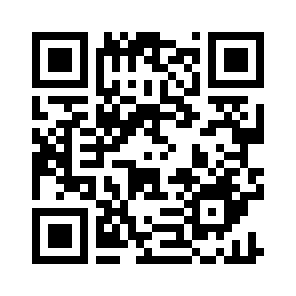
The API encodes WIFI:T:WPA;S:MyCafe;P:secret123;;. encryption is WPA (default), WEP or nopass. Add hidden=true for a hidden network.
vCard (business cards, email signatures):
curl -s -G "https://apibox.io.vn/v1/qr" \
  -H "Authorization: Bearer $APIBOX_KEY" \
  --data-urlencode "type=vcard" \
  --data-urlencode "first_name=Linh" \
  --data-urlencode "last_name=Tran" \
  --data-urlencode "org=Example Co" \
  --data-urlencode "phone=+84901234567" \
  --data-urlencode "email=linh@example.com" \
  -o vcard.png
The code holds a standard vCard 3.0:
BEGIN:VCARD
VERSION:3.0
N:Tran;Linh
FN:Linh Tran
ORG:Example Co
TEL:+84901234567
EMAIL:linh@example.com
END:VCARD
Also available: title, website, address.
The other types:
type |
Fields |
|---|---|
email |
to, subject, body |
sms |
phone, message |
tel |
phone |
geo |
lat, lng |
POST works too, with the same fields in a JSON body. That's cleaner when you have many fields or values with special characters.
4. Batch generation in Python
Say you print labels for 200 products. Generate the files once and store them. Don't call the API on every page view.
import os, requests

KEY = os.environ["APIBOX_KEY"]
skus = ["SKU-1001", "SKU-1002", "SKU-1003"]

for sku in skus:
    r = requests.post(
        "https://apibox.io.vn/v1/qr",
        json={"text": f"https://example.com/p/{sku}", "format": "svg", "ecc": "Q", "margin": 2},
        headers={"Authorization": f"Bearer {KEY}"},
        timeout=15,
    )
    r.raise_for_status()
    with open(f"{sku}.svg", "wb") as f:
        f.write(r.content)
Each image is one request. 200 labels use 200 of your 1,000 free monthly requests. The Free plan also allows up to 30 requests per minute, so add a short pause in larger batches.
5. Read a QR code from an image
The reverse direction is useful in two places: checking in CI that the codes you generate actually scan, and reading codes your users upload. POST /v1/qr-decode takes a PNG or JPEG (multipart file, a raw body, or file_base64):
curl -s https://apibox.io.vn/v1/qr-decode \
  -H "Authorization: Bearer $APIBOX_KEY" \
  -F "file=@qr.png"
Decoding the qr.png from section 1:
{
  "found": true,
  "data": "https://apibox.io.vn",
  "type": "url",
  "version": 2,
  "image": { "format": "png", "width": 297, "height": 297 },
  "location": {
    "top_left": { "x": 36, "y": 36 },
    "top_right": { "x": 261, "y": 36 },
    "bottom_left": { "x": 36, "y": 261 },
    "bottom_right": { "x": 261, "y": 261 }
  }
}
The response has found, the decoded data, a detected type (URL, WiFi, vCard, email, phone, OTP, EMVCo payment or plain text), the QR version, the image size and the position of the code. For some types you also get parsed fields: decoding the WiFi code above adds "wifi": {"ssid": "MyCafe", "security": "WPA", "password": "secret123", "hidden": false}. It handles photos, screenshots, inverted codes and transparent backgrounds. Images are processed in memory and not stored.
A simple round-trip test: generate a code, decode it, and assert that data equals the text you encoded.
Choosing an error-correction level
QR codes carry redundancy so a damaged or partly hidden code still scans. More redundancy means a denser code.
- L – smallest code; good for long URLs on screens.
- M – the default; fine for most uses.
- Q / H – 25–30% recovery. Use these for small prints, labels that may get dirty, or if you plan to put a logo over the centre.
If a long URL produces a dense, hard-to-scan code, shorten the URL first or drop to ecc=L.
Limits and gotchas
- Keep the key on the server. A GET to
/v1/qrreturns the image directly, with a one-day cache header. But the request must carry your API key. Don't puthttps://apibox.io.vn/v1/qr?...&api_key=...in a public<img>tag: anyone could copy the key. Generate the image on your backend and serve or store it yourself. - Data size. About 2,900 characters at most. In practice, keep payloads short for codes people scan with phones.
- No logo overlay. The API draws the code only. If you add a logo, use
ecc=Hand test the result with/v1/qr-decode. - Size rounding. PNG output is often smaller than
size: 297 px for a short URL, 265 px for a vCard atsize=300(see section 1). SVG keeps the exact size. - "Powered by APIBox" on the Free plan. Free accounts created since November 2026 get a small grey "Powered by APIBox" line in a strip under PNG / SVG codes (16 px high up to 599 px wide, so 297×313 px at
size=300; linked in the SVG). It sits outside the quiet zone and does not affect scanning. Starter and Pro have no badge; the headerX-APIBox-Badgesays1or0. - Data URL. In
format=json,png_base64already starts withdata:image/png;base64,.
Library or API?
If you generate QR codes in one language, offline, a mature QR library is a fine choice. Hosted QR APIs exist too, from free no-key endpoints to commercial services with dynamic codes and scan analytics. An API like this one fits when you want the same output from any stack (a no-code tool, a PHP site, a Node service). It also gives you the payload builders for WiFi and vCard, the decoder for testing, and a few hundred other utility endpoints under the same key.
FAQ
Can I use the API URL directly in an <img> tag?
Technically yes, since GET returns the image. But the request needs your API key, so do it only on private pages, or better, generate once on the server and store the file.
How do I create a WiFi QR code?
/v1/qr?type=wifi&ssid=MyCafe&password=secret123. Optional: encryption=WPA|WEP|nopass and hidden=true. Special characters are escaped for you.
PNG or SVG? SVG for print and anything that gets resized. PNG for email clients and places that don't accept SVG.
Are dynamic (editable) QR codes supported? No. The code encodes exactly the text you send. For a code you can re-point later, encode a URL on your own domain and redirect it.
Get started
👉 Get a free API key – 1,000 requests a month, no card required.
Try it in the browser first: free QR code generator. Full parameters: QR Code API docs.
More articles
- API Ninjas Holidays Alternative for Vietnam (+ Lunar)
Need Vietnam holidays beyond a date list? Compare API Ninjas Holidays with APIBox: Tết break, make-up days, 2027, lunar dates. Migration code included. - HTML to Markdown API: Clean Markdown From Any Web Page
Convert HTML or any URL to clean GitHub-flavored Markdown with one API call: tables, absolute links, Readability article extraction. curl, JS, Python. - IP Geolocation and User Agent Parsing in One API Key
Look up country, city, ASN and ISP for any IPv4/IPv6 address, parse User-Agent strings into browser, OS and device, and detect bots. curl + JS. - OG Image Generator API: Social Cards From a Title
Generate 1200×630 Open Graph images from a title, subtitle and site name with one GET request. Themes, gradients, story and square sizes. curl + JS.